Figma AI: The Secret to Fast, Clean UI Design
Figma AI: The Secret to Fast, Clean UI Design
1) Introduction – Figma AI: A Real Experience
At the beginning, I was struggling with something small but exhausting: repeatedly designing UI screens using the same layout patterns and styling rules. Every time I opened Figma, I would start by creating frames, setting colors, defining typography, and then reorganizing elements again and again. What bothered me most was that after hours of work, I sometimes realized the overall structure wasn’t clear or the hierarchy needed to be rearranged.
That’s why I searched for Figma AI. I wanted real speed—without turning the design process into chaos. The first time I tried, it felt personal to me because I needed a faster start, especially when I was under pressure or working with deadlines. Instead of spending too much time thinking about the “blank-page setup,” I gained a strong starting point. It felt like the tool understood what I needed: turning my idea into a structured direction faster, while keeping the design clear and aligned with my workflow.

2) Why I Chose This Program
I chose Figma AI specifically because it lives inside the same environment I work in every day. Many AI tools feel disconnected—you jump between apps and break your workflow. But here, it felt like I was still staying in my design space. The emotional comparison with other tools was clear: some give too many suggestions, but applying them becomes difficult and requires heavy manual work.
With Figma AI, what attracted me first was speed without losing design context. Instead of starting from zero, I got proposals closer to what I had in mind. The second reason I kept using it: I could adjust outcomes quickly. Rather than spending too much time on random trial-and-error, I started from a “ready draft” and improved it. That difference affected both quality and time. Overall, it helped me think faster while still relying on my taste and decisions.

3) System Requirements & Installation
My device was mid-to-strong because I often work with UI files that include multiple frames and layers. Still, performance depends heavily on the file size. If your device is weaker, you might notice delays during generation or even while moving through large designs.
Installation steps were straightforward:
- Open Figma (either via the web browser or the desktop app).
- Find AI-related features/add-ons inside Figma or through the Marketplace (depending on availability).
- Sign in and enable any required permissions.
Did I face any problems? Yes—slight lag at first, mainly due to loading time. After updating the browser and improving my internet connection, things became smoother.
Also, even before using AI, very heavy files (lots of layers) can slow everything down, so optimizing the file structure matters.
4) First Impression
The first time I opened it, my feeling was: “Okay… familiar and clear.” The interface is already known to anyone working with Figma. Same workspace, same logic: Frames, Layers, Styles, and assets—just with AI enhancements that support speed. The interface felt organized, and most options were not confusing. What I noticed quickly is that AI-driven features are easier to access than searching through endless menus.
Was it easy or confusing? For me, it was easy because I already knew Figma. But for complete beginners, it could be slightly confusing at the start, especially when trying to understand which steps AI helps with and which ones you must handle manually. After a short time, I understood the “mental flow” of using it: define the goal, generate a direction, then refine it. That made the overall experience smoother than I expected.
5) Main Features
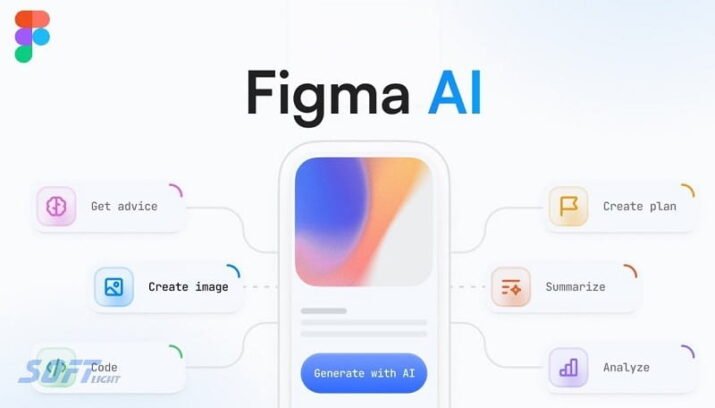
The most important feature for me was generating design suggestions quickly based on my idea or description. Instead of spending too long thinking about spacing, hierarchy, or overall layout, I used AI as a starting point. The second feature that mattered in real life: improving consistency. When I work with many elements, AI can propose adjustments that make the design feel more coherent.
The third practical benefit was reducing setup time. I often wasted time preparing base layouts and initial structure. With AI, the draft becomes much closer to the final direction. A practical example: I needed a simple landing page. Instead of building everything from scratch, I described the goal.
AI returned an initial structure with a clear hierarchy—headline, supporting text, and buttons—in a style close to what I expected. Then I adjusted colors, typography, and spacing to match the brand.
Overall, these features didn’t replace my design decisions—they accelerated my process and gave me strong momentum.
6) Real Usage Experience
In my actual experience, I applied Figma AI to a real project: designing a landing page for an educational product. Instead of starting from a blank canvas, I first prepared the overall brand direction (colors and typography) inside the Figma file. Then I used AI to generate an initial layout draft. My first step was clearly defining the goal: what type of landing page is this? What content should be included? And what hierarchy do I want for the user journey? After that, I asked AI to produce a draft. The result was tangible: a clean and structured layout instead of the usual messy or slow beginning I often had.
Then I refined the details quickly:
- Adjusted spacing between headline and body text.
- Improved the placement of buttons and the main CTA.
- Updated or requested better wording for the content to match the design tone.
Finally, I created a second version using the same base and focused only on improvements. The biggest outcome was clear: a major reduction in the “starting anxiety” and wasted time. I spent more energy on refining the real details rather than building the basics from zero.
7) Problems I Faced
The biggest issue I faced was slow performance—especially with large files or lots of layers. Sometimes, results took a moment longer to appear before the draft loaded. Another challenge was a minor inconsistency. AI might suggest a layout or style that looks great, but it still needs adjustments to match the brand identity perfectly. So it wasn’t a serious error, but it required human review.
A third issue was difficulty at the beginning in writing the “right prompt.” When I used vague descriptions, the result felt general and not fully aligned with the project’s needs.
In summary, the tool was strong as a starting point, but the more clarity I gave it (exact goal + content structure + style preferences), the fewer problems I saw.
8) Solutions & Tips
My solutions depended on two main actions: improving my prompt and reducing file load.
- First, I started writing clearer requests like: “A simple landing page with a strong headline, one main CTA, and three short benefits.” The more specific the description, the closer the output became.
- Second, whenever I noticed lag, I worked on a lighter version of the design or separated parts into smaller files.
Practical tips:
- Use AI for the draft, then refine manually for brand alignment.
- Don’t ask for everything at once—break the goal into steps (layout first, then style/colors, then text).
- If the result isn’t right, change the angle of the prompt (e.g., “minimal/modern/clean”) instead of repeating vague text.
Smart approach: select the correct Frame before generating. This reduces confusion and improves the accuracy of results.
9) Integration with Other Tools
For me, integration was mainly within Figma itself rather than connecting to external software. I generated the AI draft, then used my normal workflow: organizing pages, applying styles, and exporting the correct sizes for web or mobile. I didn’t deeply link it to many third-party apps in my early trial, but I benefited from the AI output inside Figma: copying elements, harmonizing colors and typography, and then building prototypes.
If you work with separate content tools (like text editors), you can generate text using AI and paste it into your design. In my case, I focused on getting a structured layout first, then finalizing the content manually to match the project requirements. The key advantage is compatibility: the output stays within the same design system.
10) Security & Trust
Do I trust the program? Yes—within a reasonable level. I don’t treat AI output as “final truth.” I treat it as a helper to accelerate my first draft, and I always review everything.
From a security perspective, I didn’t experience annoying or suspicious permission requests in my trial. The normal sign-in and permissions inside Figma felt appropriate.
My personal trust comes from two points:
- It’s inside a well-known platform used by professionals.
- I always validate the results before using them in the final design.
My advice: avoid putting highly sensitive personal data in prompts. Use general project details until you’re fully comfortable with permissions and policies.
Overall, security feels acceptable, but human review is still essential.
11) Who Is This Program For?
Figma AI is a great match for:
- UI/UX designers who repeatedly build similar layouts.
- Students are working on frequent projects and need faster drafts.
- Small teams that need quick prototypes before reviewing with others.
It’s less suitable for people who want complete manual control from the very first second. Also, if your device is very weak or your files are extremely heavy, lag may frustrate you.
Direct recommendation: try it on a simple project first—like a landing page or one-screen design—and compare your time before and after.
If you notice that you’re saving time and your refinements become easier, then it’s absolutely worth using regularly. But if you feel it doesn’t fit your workflow, don’t force it—keep your process natural and choose the tools that genuinely help.
12) Conclusion & Final Rating
Will I keep using it? Yes. I discovered that it reduces the “boring and slow part” of design: the initial setup and first draft organization. If the goal was to fully replace my own design thinking with AI output only, maybe I wouldn’t continue. But because it works as a fast draft and direction tool, it helped me stay in my style while working more quickly.
Should I recommend it? Yes—especially to designers who deal with interfaces often and want to reduce time without sacrificing review quality.
My honest rating:
- Speed: excellent (especially for layout and early direction).
- Accuracy: good, but still requires my adjustments.
- Ease of use: easy if you already know Figma; slightly confusing for total beginners.
Final verdict: Figma AI is a strong workflow enhancer, not a replacement for human design decisions.
Most importantly: use it as a draft accelerator, and keep your taste and judgment in control.
Technical Details
- Category: Photo & Video Editing
Program name: Figma AI
- Version: Latest
- License: Freemium (Free + Paid plans)
- Program size: Cloud-based (No download required)
- Operating systems: Windows, macOS, Linux (via browser)
- Kernel: Web-based (Cloud Application)
- Languages: Multilingual (English + others)
- Developer: Figma Inc.
- Official website: figma.com